
BevLogic Consumer Shipping Report
The BevLogic Consumer Shipping Report App is owned and built by a 3rd party developer (Treefrog Digital). For questions regarding setup, export, orders, or support, contact support@treefrogdigital.com.
For quick access to the topic you are looking for, click the corresponding link below:
Setup Instructions
- Install the App on Commerce7
- From the Commerce7 Admin Panel, Go to Apps. (You will need to have Admin Owner role to install the app)
- Search for BevLogic Consumer Shipping Report by Treefrog Digital, click on the app, and then click Install App.
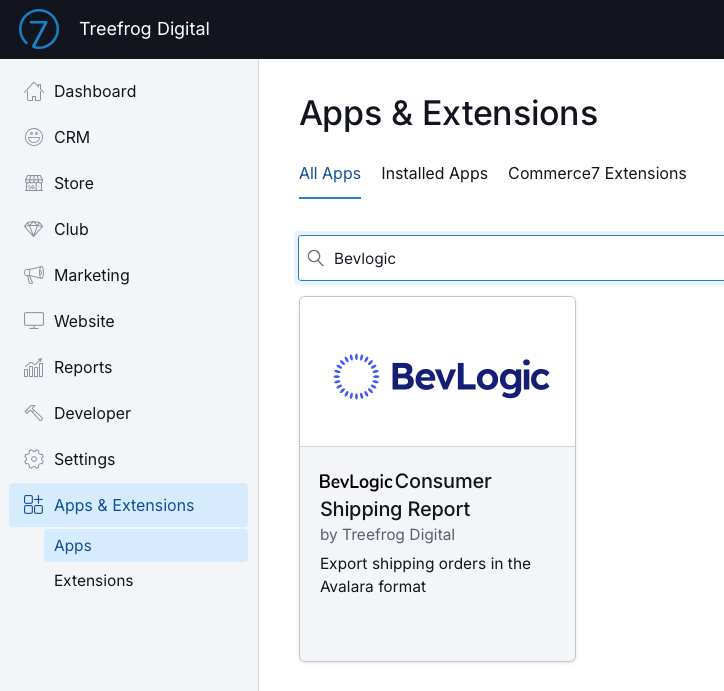
- After the installation is complete, the application will show up under the Reports menu page in your admin panel.

Exporting Shipping Orders with the BevLogic Consumer Shipping Report App
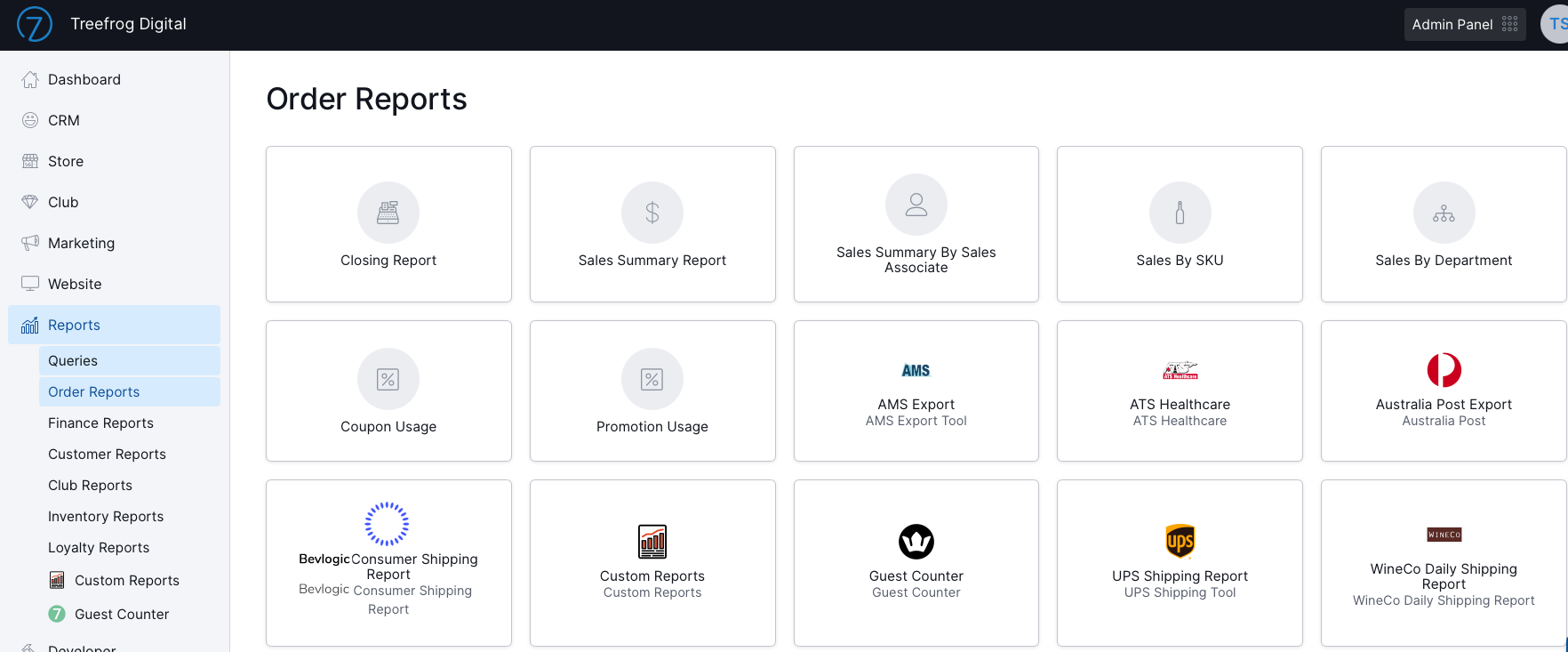
- From your Commerce7 admin panel, go to Reports.
- Click on Order Reports
- Scroll until you see BevLogic Consumer Shipping Report and click on it.
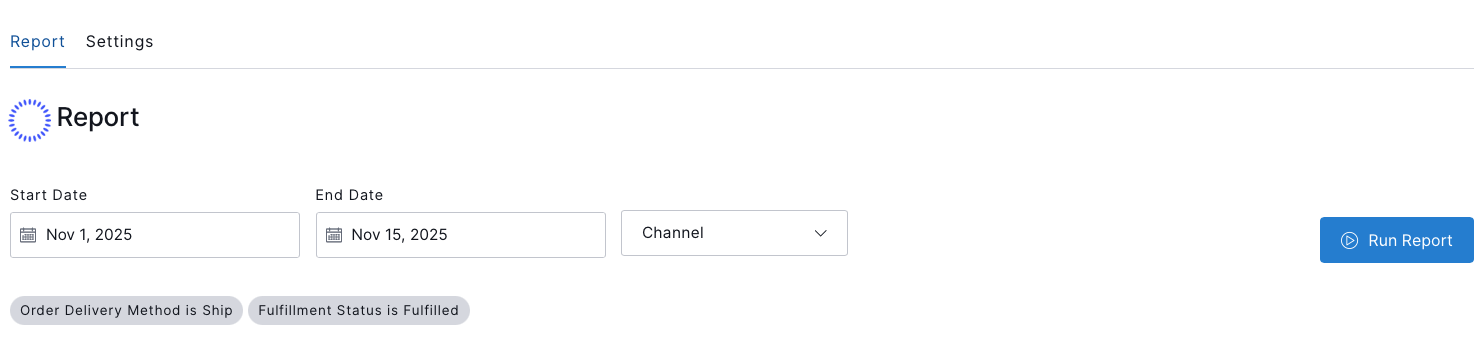
- Set the desired Start Date, End Date and Channel for the data you want to export.
- Click on Run Report to run the report.
After you click Submit:
- The app will start generating the report.
- The system will process your request. This may take a few seconds or a few minutes, depending on the date range and the amount of information being exported.
- Once processing is complete, you will also receive a copy of your report by email. The download links in the email will expire 24 hours after they are sent.
- If you have Admin Owner permissions, you can also view your download and check its progress from the Bulk Action area, located in the app settings.